How websites actually work
Read the video transcript
Welcome to Lesson 0.1. Before you build a website, it helps to know what a website actually is, where it lives, and how it gets onto your screen. And by the end of this lesson, you'll have changed a real website, in your own browser.
This isn't theory for the sake of it. Every tool you'll set up in this course does one job in this journey. GitHub stores your files. Vercel keeps them online. Your domain is the address people type. Once you see the journey, nothing feels random.
So, what is a website? Underneath every website, from a small bakery's page to YouTube, is a set of files. There are three main kinds.
HTML is the content and structure. Headings, paragraphs, images, buttons. Think of it as the skeleton.
CSS is the look. Colours, fonts, spacing and layout. Think of it as the clothes.
And JavaScript is the behaviour. What happens when you click, type or scroll. Think of it as the muscles. When you build with Cursor, the AI writes these files for you.
Those files have to live on a computer that's always switched on and always connected to the internet, so anyone in the world can ask for them, at any time. That computer is called a server. Renting space on a server is called hosting. In this course, Vercel is your host, and it's free while you're learning.
Every server has a numeric address, called an IP address. Something like 76.76.21.21. Nobody wants to type that, so we use domain names instead, like adjoaskitchen.com. The system that turns the name into the number is called DNS. Think of it as the internet's phone book: you look up a name, and it gives you the number.
Now let's put it all together. Here's everything that happens after you type adjoaskitchen.com and press enter. One. You type the address.
Two. Your browser asks DNS where the website lives, and DNS answers with the IP address.
Three. The browser asks that server: please send me the home page. That message is called a request.
Four. The server answers, sending back the HTML, CSS, JavaScript and images. That's called the response.
And five. The browser reads the HTML for structure, applies the CSS for style, runs the JavaScript, and shows you the page. All of that, usually in under a second.
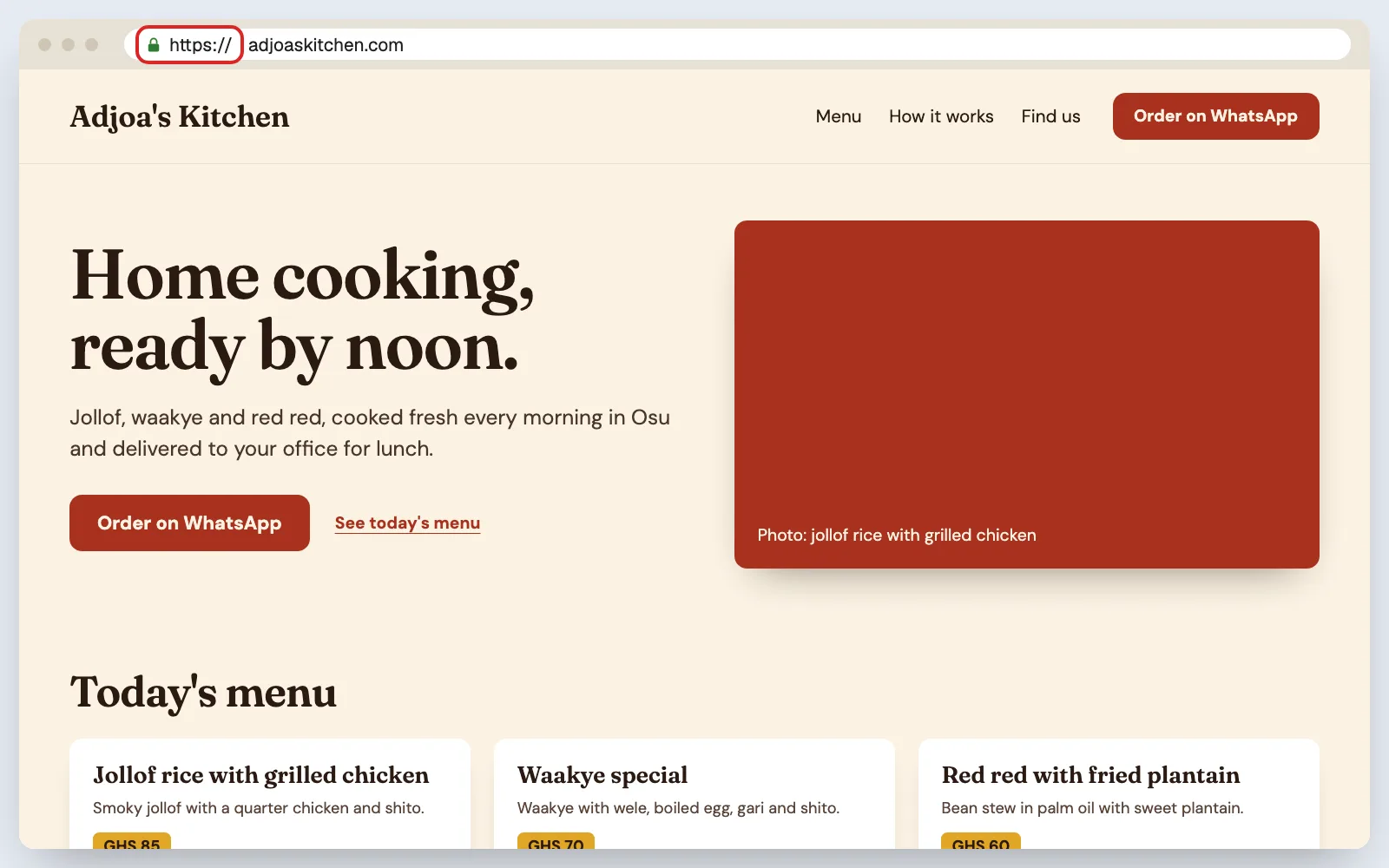
You've seen the little padlock next to web addresses, and addresses that start with HTTPS. The S stands for secure. It means the conversation between your browser and the server is scrambled, so nobody in between can read it. Every website you build in this course gets the padlock, and Vercel sets it up for you automatically.
Two last words for now. Everything the visitor sees and clicks is called the front end. But when a customer places an order, that order has to be saved, and the owner has to be told. That work happens behind the scenes, and it's called the back end. Stage 1 of this course is the front end. Stage 2 is the back end: the part most AI tutorials skip, and the part this course takes slowly.
Now for the fun part. You're going to look inside a real website, and then change it. Don't worry. What you change only happens in your browser, on your screen. You can't break the real website, and nobody else will see it.
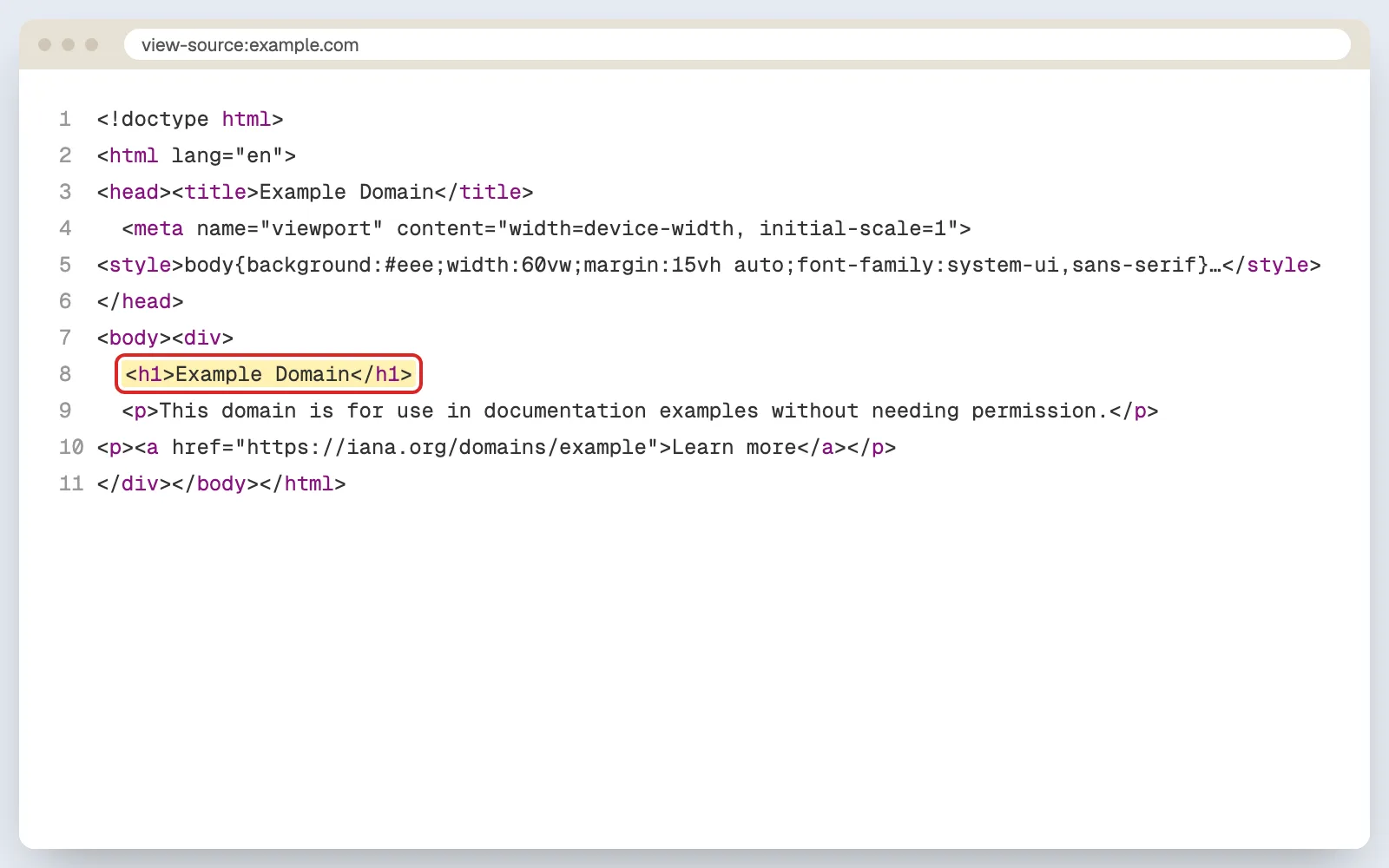
Open Google Chrome and go to example.com. Right-click on an empty part of the page, and choose View Page Source. A new tab opens full of text. That's the page's HTML, the exact file the server sent you. See the words Example Domain, wrapped in an h1 tag? That's the heading you saw on the page.
Close that tab and go back to the page. Now right-click directly on the heading, and choose Inspect. A panel opens. These are Chrome's developer tools. One line is highlighted in blue: the h1 heading.
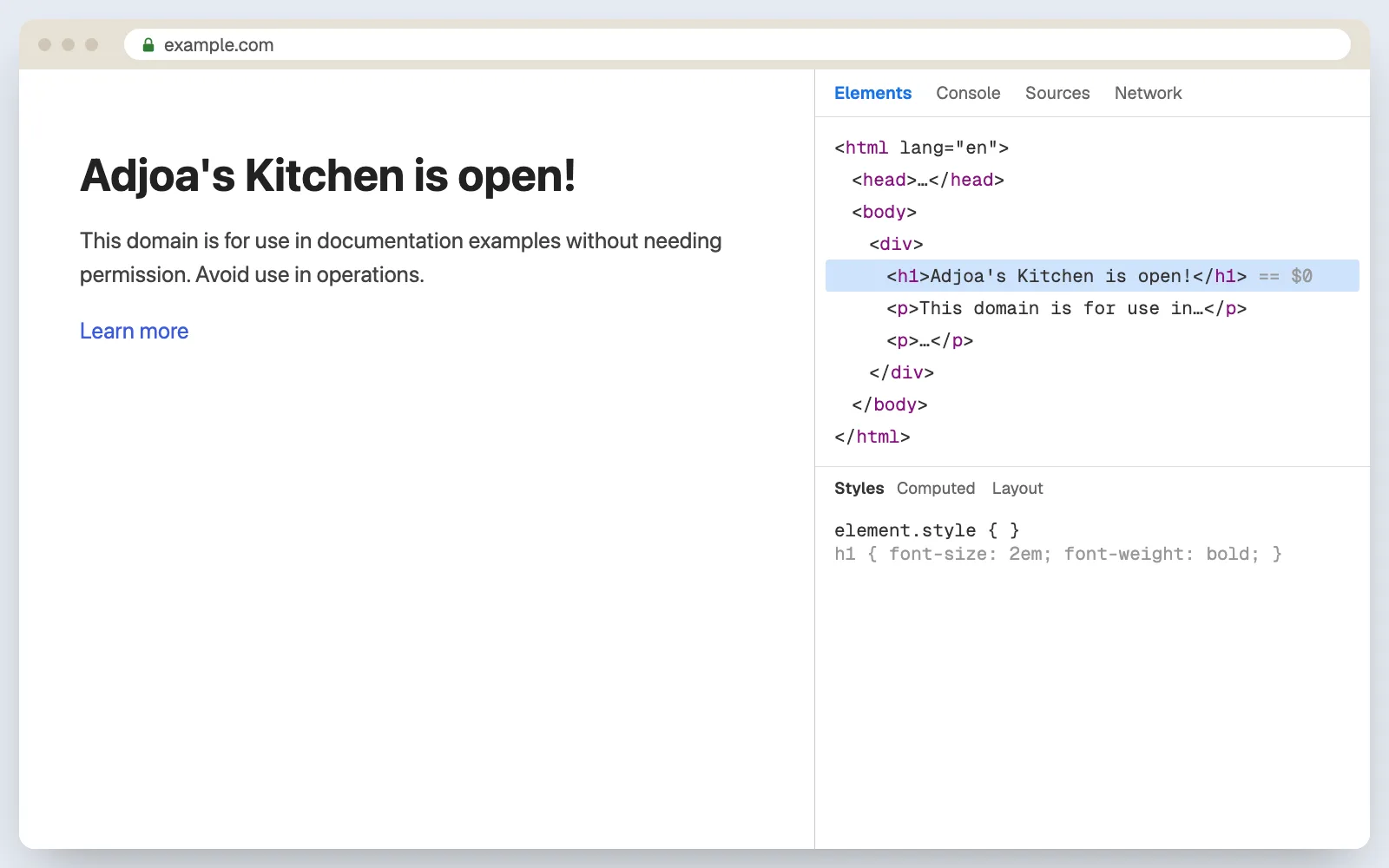
Double-click the words between the tags. Type something new, like, Adjoa's Kitchen is open! And press enter. Look at the page. The heading has changed.
Want to change the look too? In the Styles section, find element.style. Click between the curly brackets, type color: red, and press enter. The heading turns red. You just changed the HTML, the skeleton, and the CSS, the clothes. Refresh the page, and everything goes back to normal.
That's exactly what Cursor will do when you build. Except it changes the real files, and you'll put them online for everyone. You can now explain how a website reaches your screen, name the three kinds of files, and look inside any website. Do the quick check in the written lesson, then join me in Lesson 0.2, where you'll meet the AI that writes these files for you.
Understand the full journey from typing a web address to seeing a page, and edit a real website in your own browser.
Why this matters
You're about to spend this course building websites. Before you build one, it helps to know what a website actually is, where it lives, and how it gets from somewhere on the internet onto your screen.
This isn't theory for the sake of it. Every tool you'll set up in this course does one job in this journey. GitHub stores your files. Vercel puts them on a computer that's always online. Your domain is the address people type. When you understand the journey, every tool has a place, and nothing feels random.
You'll also do something in this lesson that most beginners don't expect: you'll change a real, live website in your own browser. It takes about two minutes.
The idea in plain English
A website is a set of files
That's it. Underneath every website, from a small bakery's page to YouTube, is a set of files. There are three main kinds:
- HTML: the content and structure. Headings, paragraphs, images, buttons. Think of it as the skeleton.
- CSS: the look. Colours, fonts, spacing, layout. Think of it as the clothes.
- JavaScript: the behaviour. What happens when you click, type or scroll. Think of it as the muscles.
When you build with Cursor later in the course, the AI writes these files for you. Your job is to tell it what to build, check what it wrote, and put the files online.
The files live on a server
Your website's files have to be stored on a computer that's always switched on and always connected to the internet, so anyone in the world can ask for them at any time. That computer is called a server.
Renting space on a server is called hosting. In this course, Vercel is your host. You'll send your files to Vercel, and Vercel keeps them online for you, for free.
People find the server using a domain
Every server on the internet has a numeric address called an IP address, something like 76.76.21.21. Nobody wants to type that, so we use domain names instead: words like adjoaskitchen.com.
The system that turns a domain name into an IP address is called DNS (Domain Name System). You can think of it as the internet's phone book: you look up a name, and it gives you the number.
The browser asks, the server answers
Your browser (Chrome, Safari, Edge) is the program that asks servers for files and turns them into the page you see.
The full journey, step by step
Here's everything that happens in the second after you type adjoaskitchen.com and press Enter:
- You type the address. Your browser needs to know which server has the files.
- The browser asks DNS. "Where is adjoaskitchen.com?" DNS answers with the IP address.
- The browser asks the server. "Please send me the home page." This message is called a request.
- The server answers. It sends back the HTML, CSS, JavaScript and images. This is called a response.
- The browser builds the page. It reads the HTML for structure, applies the CSS for style, runs the JavaScript for behaviour, and shows you the result.
All of that usually happens in under a second.
What about the padlock?
You've seen the little padlock next to web addresses, and addresses that start with https://. The S stands for secure. It means the conversation between your browser and the server is scrambled (encrypted), so nobody in between, like someone on the same public Wi-Fi, can read it. Every website you build in this course will have the padlock. Vercel sets it up for you automatically.
Front end and back end, a first look
So far we've talked about files being sent to your browser. That part is called the front end: everything the visitor sees and clicks.
But real websites often need to do more. When a customer places an order on Adjoa's Kitchen, that order has to be saved somewhere and the owner has to be told about it. That work happens on the server, out of sight, and it's called the back end. It usually involves a database, an organised place to store information.
Try it
Now for the fun part. You're going to look inside a real website, then change it.
Part 1: See the files behind a page
- Open Google Chrome on your laptop.
- Go to any website. A simple one works best, such as
example.com. - Right-click on an empty part of the page (on a Mac trackpad: tap with two fingers).
- Click View Page Source.
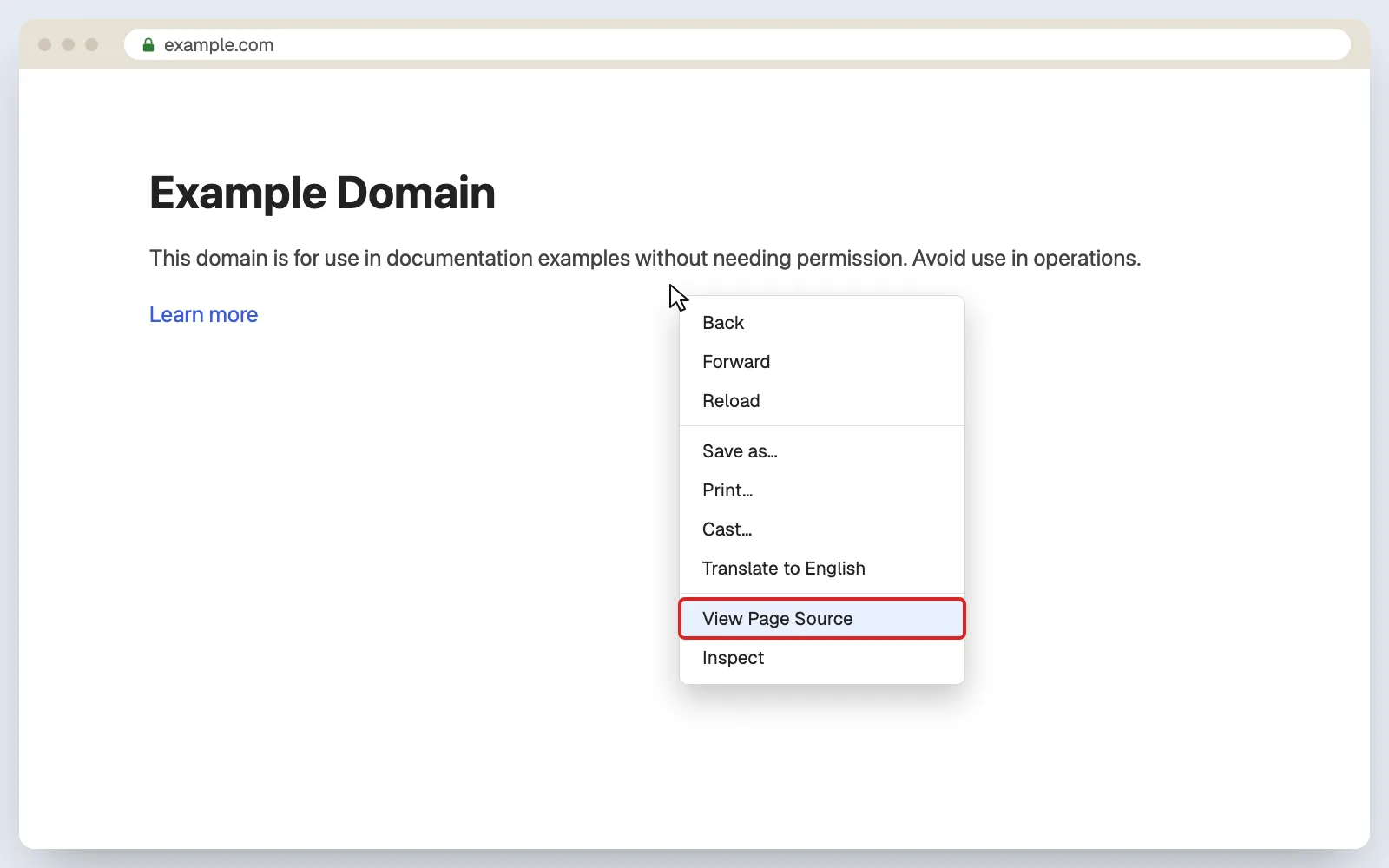
A new tab opens full of text. That's the page's HTML, the exact file the server sent your browser. Look for words you saw on the page. You'll find them, wrapped in tags like <h1> and <p>.
- Close the source tab and go back to the page.
Part 2: Edit a live website
- Right-click on the main heading of the page.
- Click Inspect. A panel opens beside or below the page. These are Chrome's Developer Tools, often called DevTools.
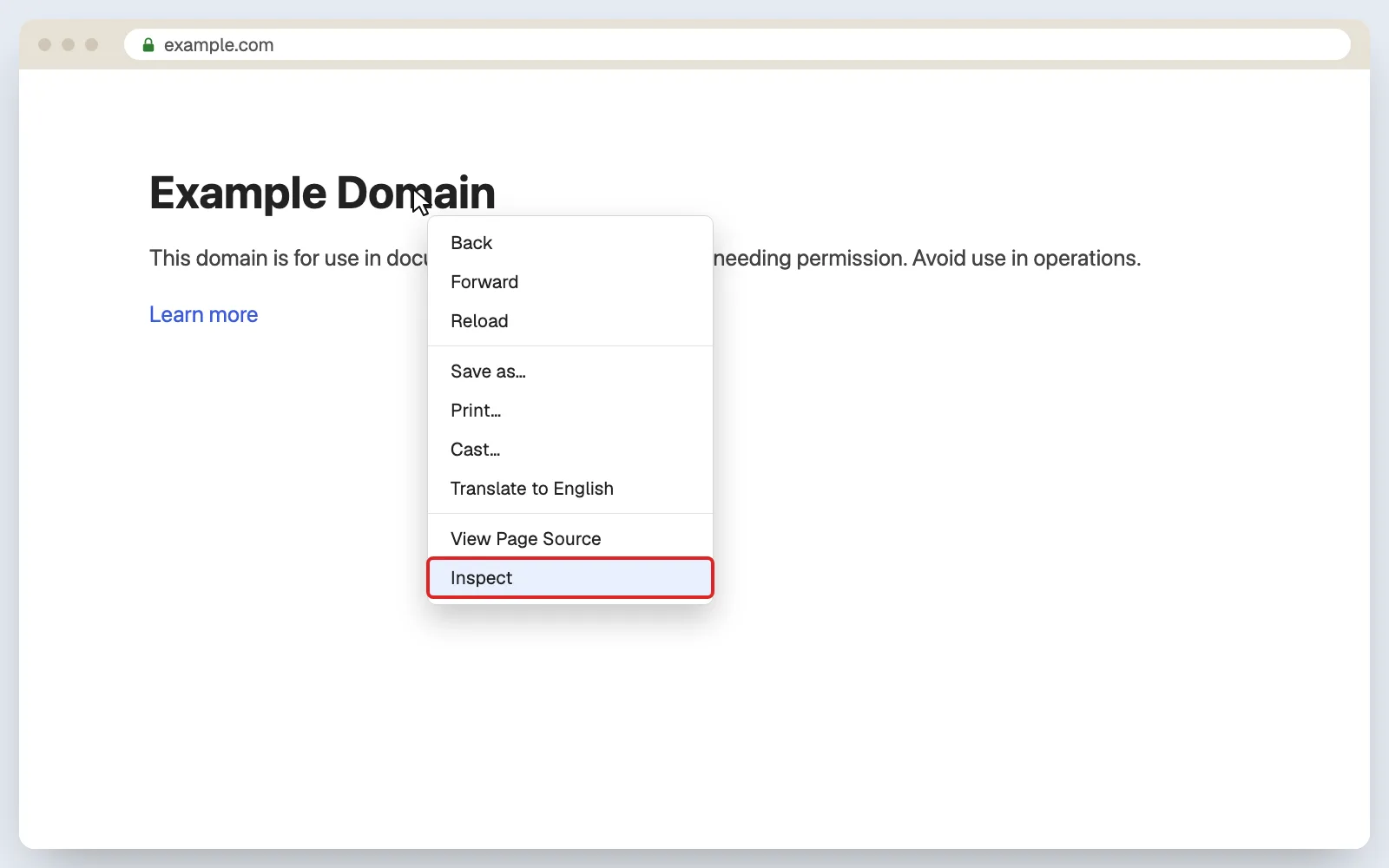
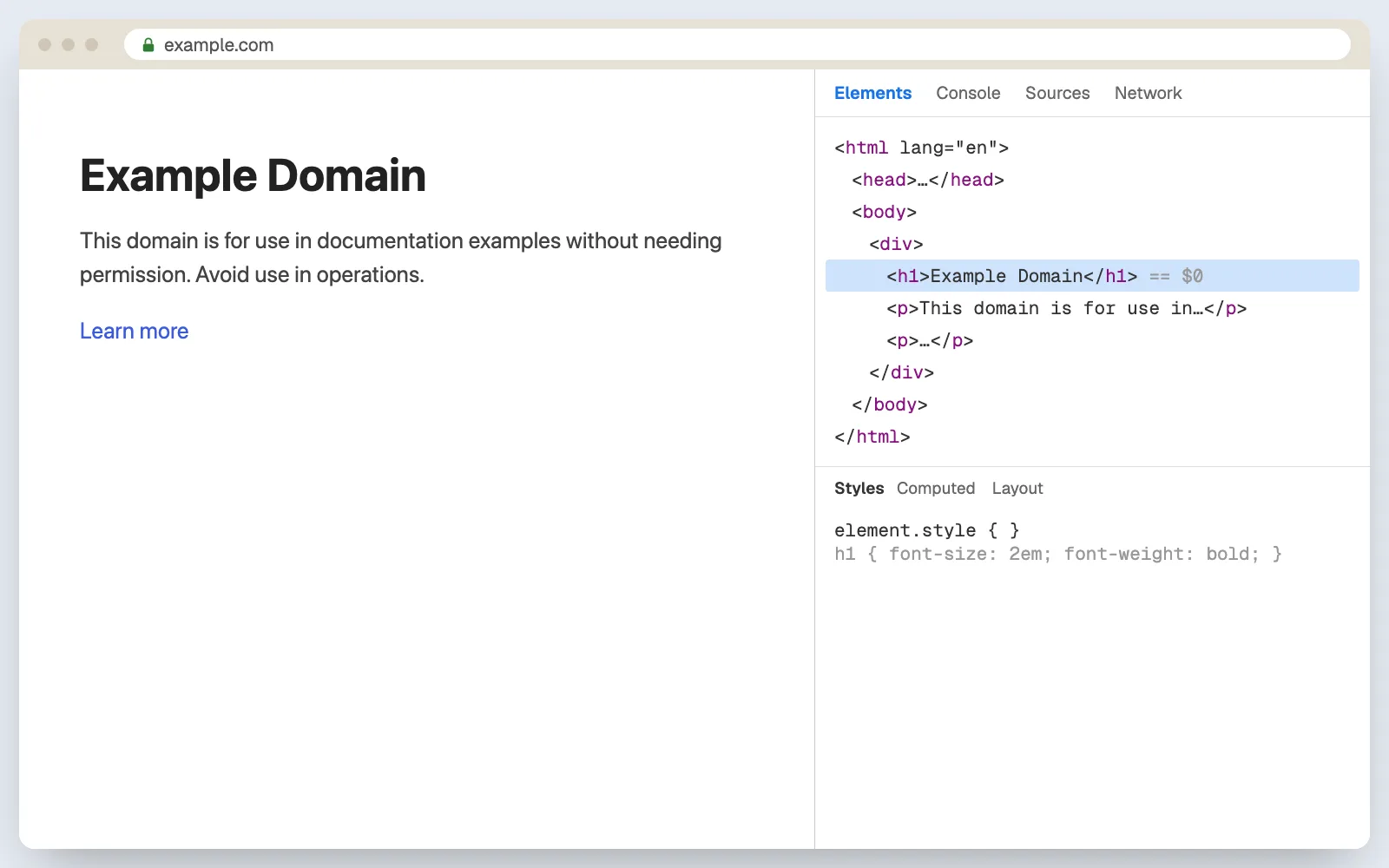
- In the panel, one line is highlighted in blue. It looks something like
<h1>Example Domain</h1>. - Double-click the words between the tags (for example, "Example Domain").
- Type something new, such as
Adjoa's Kitchen is open!, and press Enter.
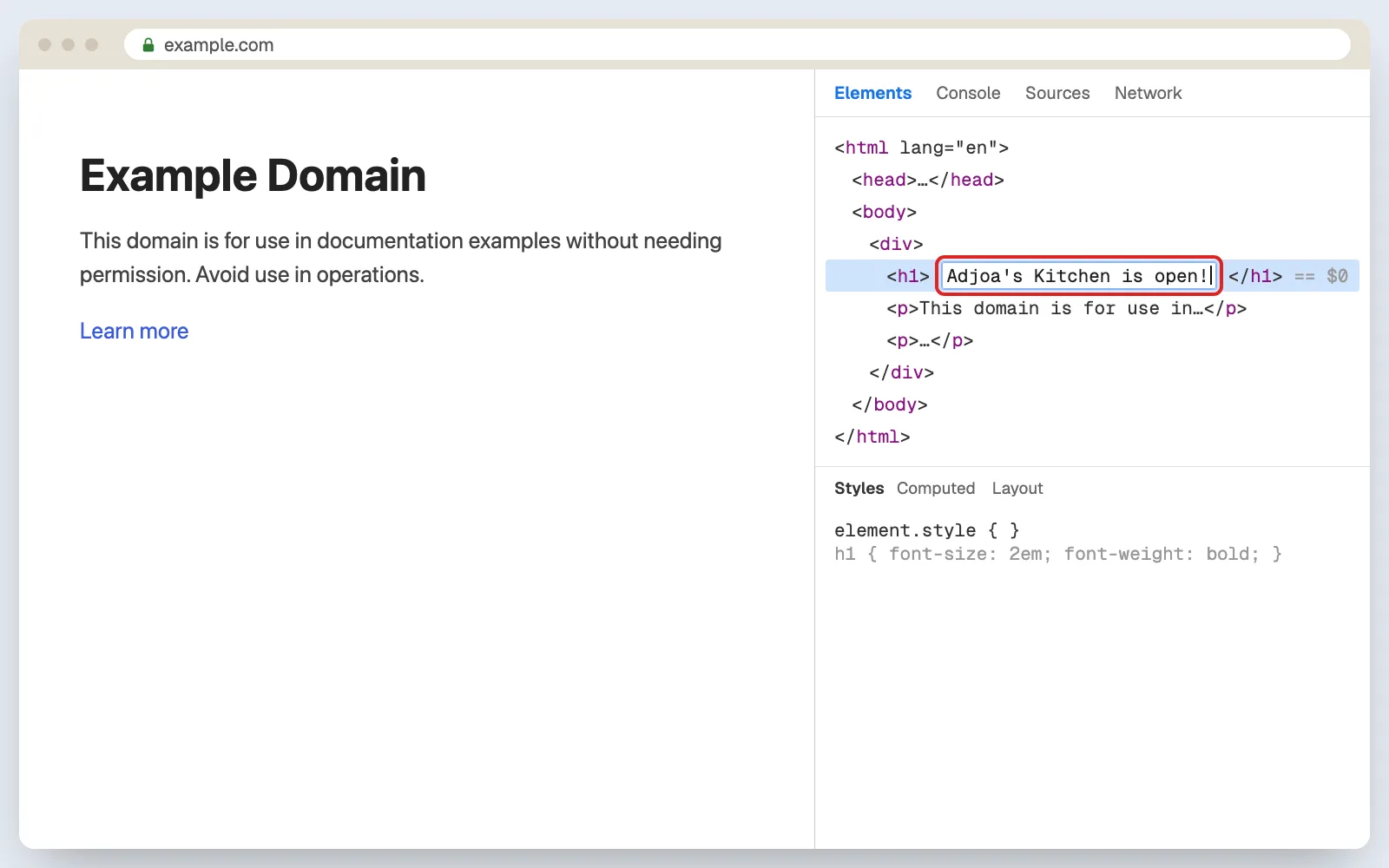
Look at the page. The heading has changed.
- Want to change the look too? Make sure the heading line is still highlighted. In the DevTools panel, find the Styles section. At the top of it is
element.style { }. Click between the two curly brackets, typecolor: red, and press Enter. The heading turns red.
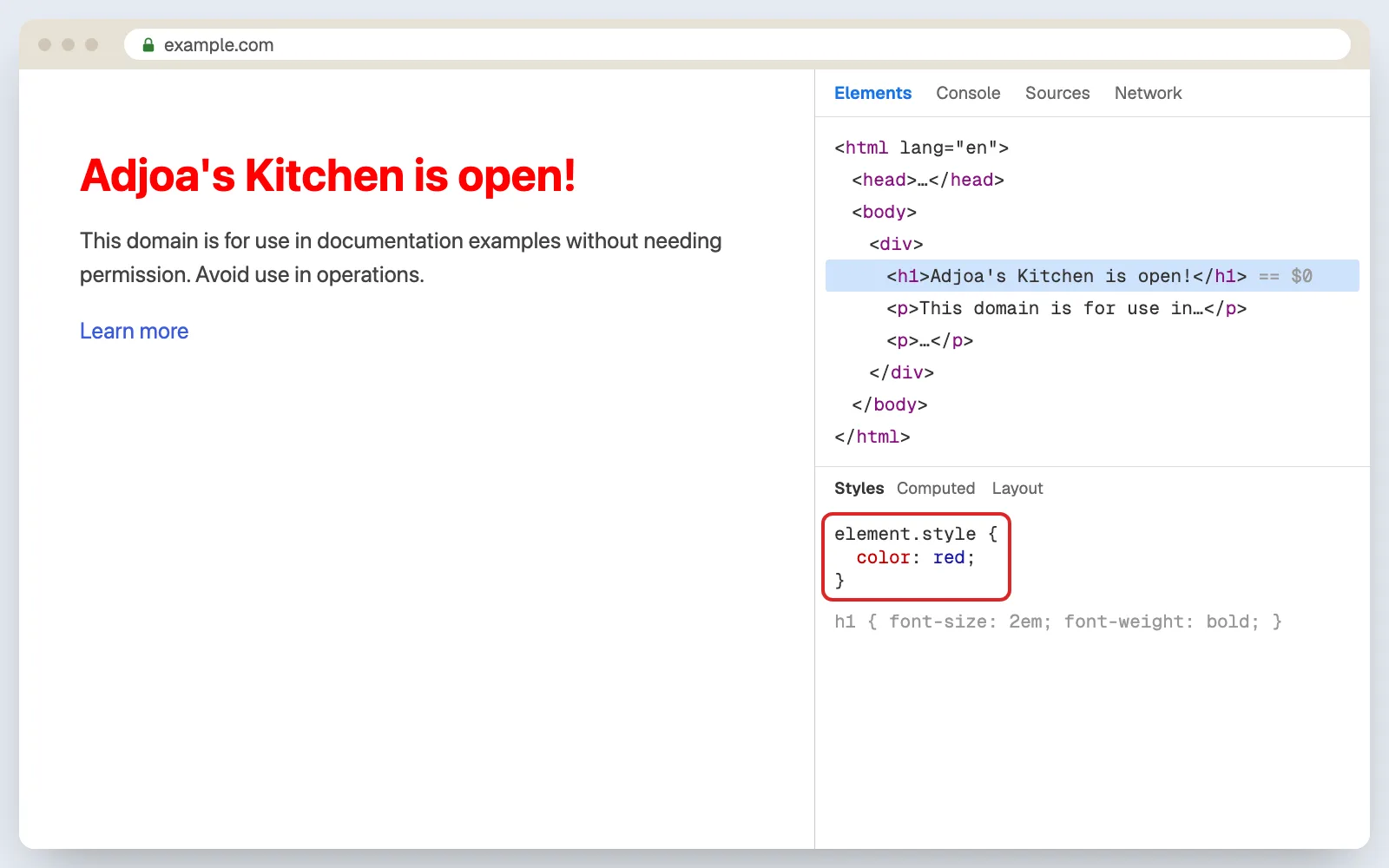
- Refresh the page. Everything goes back to normal, because you only changed the copy in your browser, not the files on the server.
You just edited a website. You saw the HTML (the skeleton), changed it, and changed its CSS (the clothes). That's the same thing Cursor will do when you build, except it will change the real files and you'll put them online for everyone.
I’m stuck
I don't see "Inspect". Make sure you're using Google Chrome, and right-click directly on the text, not on an empty area.
I'm on a phone. DevTools only works on a laptop or desktop. Read through the steps now and try them when you're at your laptop.
My laptop has no right-click. On a Mac trackpad, tap with two fingers, or hold Control and click. On Windows trackpads, tap the bottom-right corner.
The panel opened but it's full of confusing text. That's normal. You only need the one blue highlighted line. Ignore the rest for now.
Check it worked
You've done this lesson right if:
Quick check
What you can do now
- Explain how a website travels from a server to your screen
- Name the three kinds of files that make a website, and what each does
- Look inside any website and change it in your browser
Next: 0.2 · How AI coding works, and what it can't do. You know what a website is made of. Now let's meet the tool that will write those files for you.